ZoomOn Home Security Camera
- 4.2
- Rating
- 1.00M
- Installs
- Free
- Price

 Analysis by App-foxy
Turning an unused phone into a home camera sounds simple, but the useful part is not the installation itself. The real test is whether I can place one phone where I need a view, use another device to check it, and understand what I am seeing without getting lost in technical settings. That is the role of ZoomOn Home Security Camera, a free House & Home app from Master App Solutions. It is designed around the idea of using a phone as a Wi-Fi camera, with smart functions and reach that make it more flexible than a basic camera preview.
My first impression is that this is best understood as a practical repurposing tool rather than a complete replacement for dedicated security hardware. If you have an old Android phone in a drawer and want a quick way to watch a room, a pet area, an entryway, or a sleeping child from another device, the concept is appealing. You avoid buying another camera immediately, and you can test whether phone-based monitoring fits your routine before spending money on equipment.
The app is free to install and suitable for Everyone. It has reached over a million installs and holds an average rating of 4.1 from around eleven thousand ratings, which suggests that the basic idea works for many people while still leaving room for different experiences depending on the phones, network, and setup. The current version is 5.37, and it requires Android 8.0 or later. Those details matter if the spare phone you plan to use is particularly old.
You May Also Like

 Pandora - Music & Podcasts
Pandora’s Music Is Easy to Start, but Harder to Recover
Pandora’s strength is its low-effort path from a seed to a station. Its weak spot is how much confidence it asks you to place in connection, setup, and quiet recovery.

 8 Ball Pool
 Is Built on Rivalries, Rematches, and Routine
A close look at the rivalries, rematches, shared routines, and unanswered safety questions that turn a quick pool match into a persistent mobile community.

 Samsung Music
’s Quiet Strength Is Playing What You Already Own
Its reach comes less from spectacle than from dependable access to a personal library. That simplicity is both the app’s strongest retention engine and its ceiling.

 AccuWeather: Weather Radar
AccuWeather Review: A Quick, Clear Forecast for Everyday Decisions
For everyday plans, the best forecast is the one you can understand quickly. AccuWeather makes rain timing, radar, and local conditions easy to act on, with a few trade-offs.

 Hill Climb Racing
Why Hill Climb Racing Still Turns Crashes Into One More Run
A tiny car, a bumpy hill and one more upgrade: Hill Climb Racing keeps resurfacing because its simple chaos makes every near-miss feel personal.

 AliExpress - Shopping App
AliExpress Makes Global Shopping Feel Personal, but Shoppers Bear the Risk
AliExpress turns a global marketplace into a pocket-sized discovery engine. Its reach is useful, its shopping loop compelling, and its trade-offs easy to miss.
More From Our News Desk
View All News


What the app feels like in everyday use
The most useful way to approach ZoomOn is as a two-device arrangement. One phone stays in the location you want to observe and acts as the camera. A second phone is the viewer. That separation is important: the camera phone needs a stable position and a reliable power source, while the viewing phone needs to remain convenient enough for checking in when you are away from the room.
This setup can help in ordinary situations that do not justify a permanent smart-camera installation. I can imagine using an older phone to keep an eye on a pet’s room while working elsewhere in the house, checking whether a delivery has been brought inside, or watching a room while waiting for a child to fall asleep. It can also be useful during a short stay in a rented home, provided everyone affected understands that a camera is being used and the arrangement respects privacy.
That last point is not a minor detail. A phone camera is still a camera, and placing one in a shared room, bedroom, or workspace can create a privacy problem even when the intention is harmless. I would use it only in areas where monitoring is appropriate, tell other people in the home what it is doing, and remove it when the purpose has ended. The app makes a phone useful; it does not remove the responsibilities that come with recording or viewing a space.
Compared with buying a dedicated Wi-Fi camera, the main advantage is convenience and reuse. You may already own the hardware, and the app gives an old phone a new job. The trade-off is that a phone is less purpose-built: it may be bulkier to position, its battery may not last through extended use, and its camera quality, heat management, and network behavior depend on that particular device. A dedicated camera is usually the cleaner choice for permanent monitoring, while ZoomOn is more attractive for temporary, low-cost, or experimental use.
The app’s store summary mentions smart features and unlimited reach, but I would not interpret that as a guarantee that every situation will work perfectly. A remote camera still depends on the phones staying powered, connected, and able to communicate. Walls, weak Wi-Fi, an aging battery, or aggressive background restrictions can all affect the experience. The smartest approach is to test the exact location before relying on it for something important.
Who is likely to appreciate it
I think ZoomOn is a good fit for someone who has a spare Android phone and wants a straightforward monitoring experiment without buying a separate camera first. It is also suitable for people who need a camera for a limited period: checking a room during a move, watching a pet while away for the afternoon, or creating a temporary view of an area during home repairs.
It is less suitable if you need a polished, always-on security system with purpose-built mounting, dependable night performance, or a broad collection of professional surveillance controls. It is also not the right choice if you have only one phone available, because the central idea depends on one device serving as the camera and another serving as the viewer. In that case, a conventional camera or a different single-device solution may make more sense.
Preparing the two phones before installation
The smoothest setup starts before opening the app. Charge the phone that will act as the camera, clear enough space around its camera lens, and choose a position where it will not be knocked over. A shelf or stable table is usually better than balancing the device against books. If the phone will remain plugged in, keep the cable away from walkways and avoid covering the device with fabric, since extended camera use can make a phone warm.
On the viewing phone, make sure you can comfortably check the camera from the place where you expect to use it. This sounds obvious, but it exposes a common mistake: people test the camera beside the router and assume the final position will behave the same way. I prefer to place the camera phone in its real location early, then test the view from the rooms or places where I will actually check it.
Because the app requires Android 8.0 or newer, an old phone may be useful only if it meets that requirement. The age of the device also affects practical performance. A phone with a tired battery, a loose charging port, or a camera that struggles in low light may technically run the app but still be a poor camera. In my view, the best spare phone is not necessarily the newest one; it is the one that can remain stable and powered where you need it.
Getting through the first setup
Install ZoomOn on the devices you intend to use and follow its in-app pairing or connection instructions. The exact screens can vary as the app changes, so I would pay close attention to the wording shown during setup rather than rushing through it. The important mental model is simple: decide which phone is the camera, decide which phone is the viewer, and keep those roles clear while connecting them.
Give the camera phone a few minutes in its final position before judging the result. Check that the lens has a clear view, that the phone is not pointed toward a bright window, and that the charging cable does not pull it out of alignment. If the image looks wrong, adjust the physical position first. Many apparent app problems are really framing problems caused by a phone resting at an awkward angle.
I also recommend testing the arrangement with the viewer phone away from the camera phone. Walk to another room, lock and unlock the viewer, and return to the app after a short pause. This gives you a more honest sense of how the connection behaves than a quick demonstration with both phones on the same table. It also helps reveal whether the camera phone is being left in a state where it can continue doing its job.
There is a small but important trade-off here. The more convenient you make the camera phone to reach, the easier it is to adjust, but the more likely someone is to move it accidentally. The more hidden or elevated the phone is, the steadier the view may be, but the harder it becomes to check its power and connection. I prefer a visible, stable location that can be reached without climbing or disturbing the room.
The first meaningful success
For a first test, I would not begin with a complicated security scenario. I would place the camera phone in a familiar room, step out of sight, and use the viewer phone to confirm that the image updates as expected. Then I would move a recognizable object through the frame or ask someone in the household to walk past, with their knowledge, so I could confirm that the view is useful rather than merely connected.
This first success should answer three practical questions. Can I see the area I care about? Does the connection remain usable when the phones are separated? Can I tell quickly what is happening without repeatedly repositioning the camera? If the answer to any of these is no, I would fix the placement or network conditions before exploring additional options.
A realistic example would be monitoring a pet’s feeding area during a workday. I would place the spare phone far enough away to show the bowl and the surrounding floor, connect it to power, and use the viewer phone from another room. The point would not be to observe every second. It would be to check whether the pet has entered the area, whether the bowl has been disturbed, or whether something has fallen nearby. That limited purpose makes a phone camera much easier to manage than treating it as a full security installation.
Another useful workflow is a temporary check during home maintenance. If a contractor is working in one part of the home while I am in another, a camera view can reduce unnecessary trips to inspect progress. I would still make sure everyone knows about the camera and remove it when the work is finished. The app is most convincing when it solves a specific observation problem instead of being left running without a clear reason.
Confusions that can make the app seem unreliable
The first common confusion is expecting the camera phone to behave like a dedicated security camera. It is still a general-purpose phone, so its battery, screen behavior, heat, and background activity can affect long sessions. If the camera view stops working, I would first check power, device temperature, the physical cable, and whether the phone has been moved before assuming the app itself has failed.
The second is treating “Wi-Fi camera” as meaning that distance no longer matters. The app can make the camera reachable through a network, but the quality of that connection still depends on the network path and the devices involved. A test from the next room does not prove that the same setup will be comfortable from outside the home or through a weak connection. I would test from the exact place I plan to use the viewer and avoid relying on it for urgent protection until that test has been repeated.
The third is framing. A wide room can look reassuring on a small phone screen while leaving important corners hidden. Conversely, pointing too close at a doorway may show detail but miss the approach to it. I find it better to choose one clear purpose for the camera—such as a crib area, pet bed, or entrance—and frame for that purpose instead of trying to cover an entire room with a single phone.
Low light is another reason to keep expectations realistic. A phone can produce a useful image in ordinary indoor lighting, but a dark room may be much harder to interpret. If you need nighttime monitoring, test it at the actual time and with the actual lighting. Do not assume that a bright daytime preview tells you anything about the image after the lights are off.
Privacy and permissions can also cause hesitation during setup. Read the prompts shown by the app and make deliberate choices rather than approving everything automatically. If another person uses the camera phone, explain its purpose and how to stop it. A convenient monitoring arrangement should never depend on someone unknowingly appearing on camera.
Using the app without turning it into a daily chore
Once the basic connection works, the next step is to create a routine that is easy to maintain. I would keep the camera phone in one predictable place, use a short physical check before important monitoring, and avoid moving it between rooms without repeating the framing test. Consistency matters more than adding complexity.
It is also worth deciding when the camera should be active. A temporary session can be easier to control than leaving an old phone running continuously. For a pet check, I might use it during the hours I am away. For a repair project, I would use it only while work is happening. This reduces unnecessary power use and makes it less likely that the camera will be forgotten.
In-app purchases range from $0.49 to $74.99 per item. I would start with the free experience and only consider an optional purchase after understanding exactly which function it adds and whether that function solves a real problem for me. The wide range means it is especially important not to assume that every useful capability is included at no cost. I would also avoid paying before testing the camera phone, viewer phone, and network in the intended location.
That approach protects against a common disappointment: spending money to improve a setup whose real limitation is the old phone’s camera or battery. If the image is poor because the lens is scratched, or the connection fails because the device cannot stay powered, an additional app option may not change the outcome. Hardware placement and device condition should be checked first.
Where a different option is better
A dedicated smart camera is the stronger choice for permanent home monitoring. It is built to stay in one position, usually has a more suitable body and mounting system, and is less dependent on repurposing a phone that someone may later need for another task. If you want a device that the household can rely on every day without remembering which phone is acting as the camera, dedicated hardware will probably feel more natural.
A video-call app may be better for a one-time conversation where both sides are actively participating, but that is not the same use case as leaving one device positioned to observe a room. ZoomOn makes more sense when the camera phone remains in place and the viewer checks in separately. Meanwhile, a standard camera app is enough if you only need to record locally on one phone and do not need a second device to view the scene.
The advantage of ZoomOn is the middle ground. It offers a way to experiment with remote viewing using equipment many people already own, without committing immediately to a new camera. The cost of that flexibility is more hands-on management. I have to think about the phone’s placement, charging, network, privacy, and whether the old device is still healthy enough for the task.
My recommendation for a first-time user
I would recommend trying ZoomOn if you have a spare Android phone, a clear short-term monitoring need, and realistic expectations about what a repurposed device can do. Start with one room and one purpose. Test the view from the real viewing location, leave the camera phone powered safely, and confirm the arrangement with a person walking through the frame only when everyone involved understands the test.
I would skip it for high-stakes security, unattended long-term protection, or situations requiring a dependable purpose-built camera. I would also skip it if the only available phone is needed constantly, has an unreliable battery, or cannot run Android 8.0 or later. In those cases, the convenience of reusing a phone disappears quickly.
Overall, Master App Solutions has made a useful idea accessible: an old phone can become a practical second set of eyes. The app’s value is not that it magically turns every phone into professional security equipment. Its value is that it can help you solve a modest monitoring problem with hardware you already have. My advice is to judge it by the first successful real-world check, not by the promise of endless reach. If that check is clear, stable, and respectful of privacy, ZoomOn can be a smart free starting point for home observation.
FAQs for ZoomOn Home Security Camera
01What are the main features of the ZoomOn Home Security Camera app?
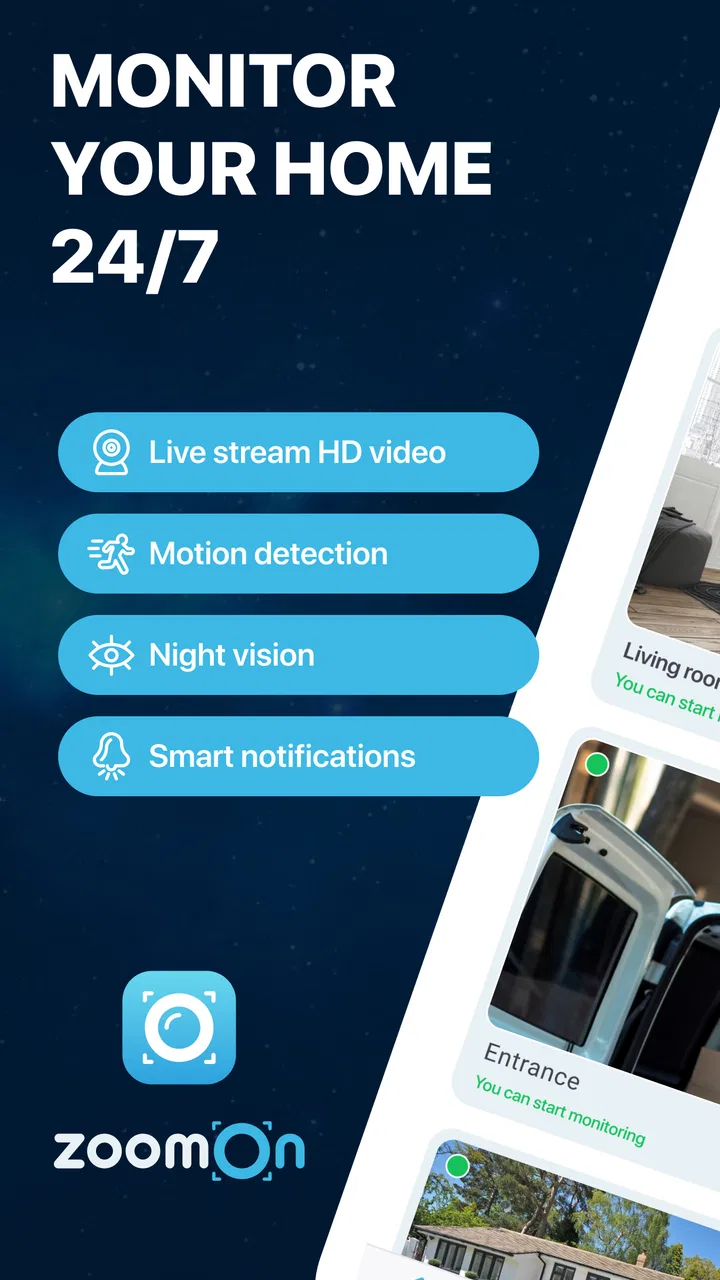
The ZoomOn Home Security Camera app offers live video streaming, motion detection alerts, and two-way audio communication. Additionally, it supports multiple camera connections, cloud storage for recorded footage, and night vision capabilities. These features collectively provide users with comprehensive home monitoring solutions, ensuring security and peace of mind.
02Is the ZoomOn Home Security Camera app compatible with all devices?
The app is compatible with both Android and iOS devices, offering broad accessibility for most smartphone users. It requires at least Android 6.0 or iOS 11.0 to function optimally. Users should ensure their devices meet these requirements to avoid compatibility issues and to utilize all features effectively.
03How does the motion detection feature work in the ZoomOn app?
The motion detection feature uses advanced algorithms to identify movement within the camera’s field of view. Once motion is detected, the app sends an instant alert to the user's device, allowing for real-time monitoring and quick response to any unusual activity. Sensitivity settings can also be adjusted to reduce false alarms.
04What are the storage options available for recorded footage in the ZoomOn app?
ZoomOn offers both local and cloud storage options. Users can save footage directly to their devices or opt for cloud storage, which provides additional security and accessibility from anywhere. Cloud storage may require a subscription, but it ensures that footage is backed up and easily retrievable.
05Is it easy to install and set up the ZoomOn Home Security Camera app?
Yes, the installation and setup process is user-friendly and straightforward. Users are guided through the setup with clear instructions. The app supports QR code scanning for quick camera connections and provides step-by-step assistance to ensure all features are correctly configured, making it accessible even for those with limited tech experience.
Pros
- Easy setup and installation process.
- High-quality video streaming.
- Real-time alerts enhance security.
- Two-way audio for communication.
- Wide compatibility with devices.
Cons
- Requires stable internet for best performance.
- Limited free features in basic plan.
- Battery usage can be high on mobile.
- Privacy concerns if not configured properly.
- Some features need paid subscription.

ZoomOn Home Security Camera
Gallery